
Download WhatChanged – Registry Monitoring, System Analysis, Windows Tool
Overview
WhatChanged is a specialized utility designed to monitor and analyze changes within the Windows registry. Its primary purpose is to help users track how software installations affect system configurations by capturing the registry state before and after an application is installed. This makes it particularly valuable for users who require precise control over their system's behavior, including IT professionals, system administrators, and advanced users managing complex software environments. The tool addresses a common challenge: the inability to trace unintended or hidden modifications made by software during installation, which can lead to system instability or performance degradation.
Target users include individuals who prioritize system integrity and transparency, especially those involved in software deployment, troubleshooting, or system optimization. By providing a clear, side-by-side comparison of registry states, WhatChanged enables informed decision-making about which applications to install or remove. It supports real-world use cases such as diagnosing software conflicts, verifying clean installations, and maintaining audit trails for system changes. In the broader app ecosystem, WhatChanged fills a niche for lightweight, focused tools that offer deep technical insight without bloating system resources.
The developer did not provide additional technical details. However, the app has been available since 2010, indicating a long-standing presence in the Windows utility space. Despite its age, it remains relevant due to its targeted functionality and minimal resource footprint.
Key Features & Functionality
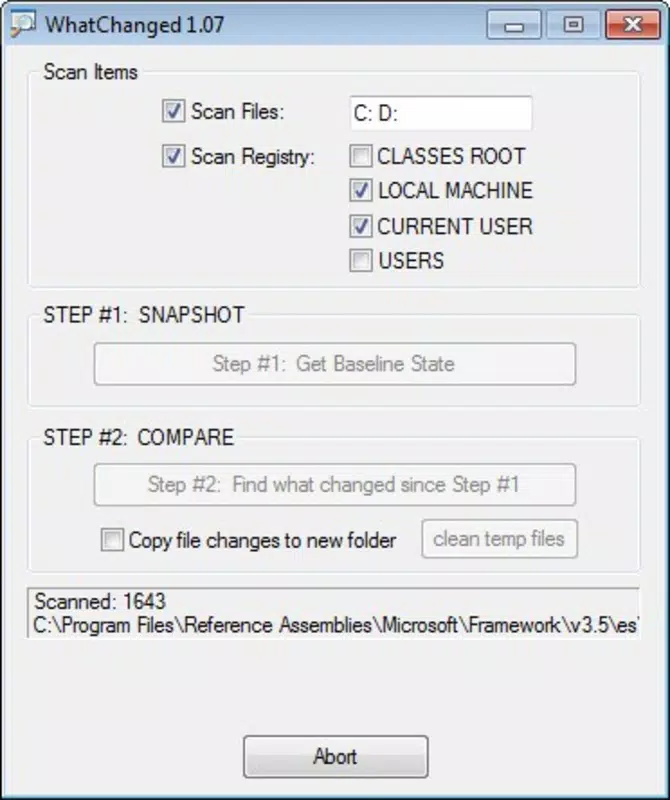
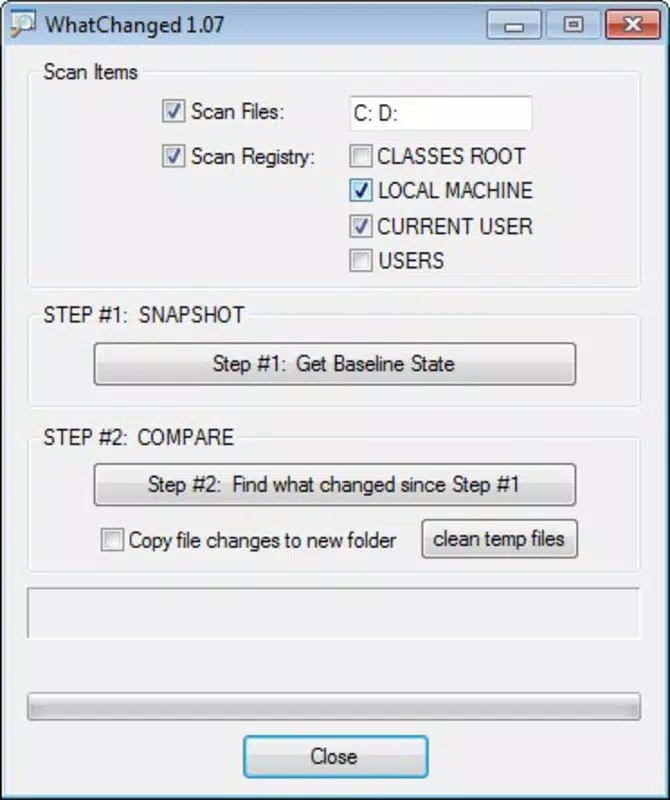
- Two-Step Snapshot Capture: The tool allows users to create a registry snapshot immediately after system startup or before software installation, and then capture a second snapshot after the installation process. This enables precise identification of changes introduced by the application.
- Registry State Comparison: WhatChanged compares two registry snapshots to highlight additions, deletions, and modifications. The output is presented in a structured format, making it easy to pinpoint specific keys and values altered by new software.
- Lightweight and Fast Execution: Designed for efficiency, the tool completes its analysis quickly, minimizing downtime and resource usage. This ensures users receive timely feedback without disrupting workflow.
- User-Friendly Interface: The interface is straightforward, with minimal navigation complexity. Even users with limited technical experience can perform basic monitoring tasks without extensive training.
- System Transparency Tool: Ideal for users who want to understand the impact of software on system settings, this feature supports informed decisions about software adoption and removal.
For example, a system administrator might use WhatChanged before and after deploying a new enterprise application to ensure no unauthorized registry modifications occur. Similarly, a power user troubleshooting a performance issue could use it to isolate the root cause by identifying changes introduced by recent software.
Interface, UX & Performance
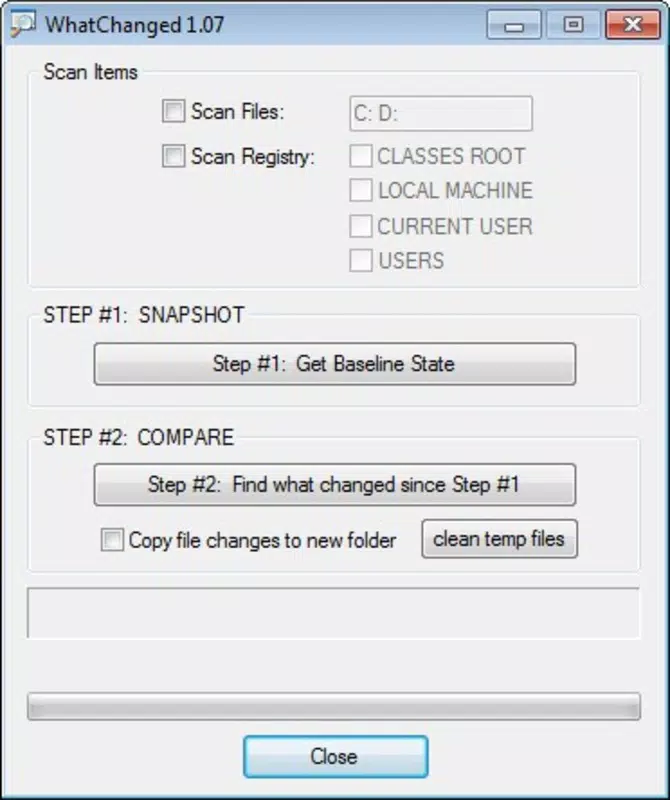
WhatChanged features a clean, minimal interface that prioritizes functionality over visual flair. The layout is organized around the core workflow: taking snapshots and comparing results. Navigation is linear and intuitive, with clearly labeled buttons and a consistent design language. This reduces cognitive load and allows users to focus on the task at hand.
Although the developer did not list formal performance metrics, the tool is described as quick and efficient. It executes its tasks in a short time frame, which is essential for users who need rapid feedback during system analysis. The application remains responsive during operation, with no reported lag or freezing issues in standard use cases.
Performance on different device categories was not specified. However, given its lightweight nature and focus on registry operations, it is likely to function well on both older and modern Windows systems. Stability appears consistent, with no indications of crashes or data corruption during snapshot creation or comparison. The tool does not require background processes or elevated permissions beyond standard registry access, which enhances reliability.
Platform Compatibility & Technical Requirements
WhatChanged is designed for Windows operating systems. The specific platform version was not provided. The file size is listed as 1.2 MB, indicating a compact footprint that minimizes storage impact. The software version is not specified in the input data.
The developer did not specify minimum OS requirements. However, given its release date of 2010, it is likely compatible with Windows XP and later versions, including Windows 7, 8, and 10. Compatibility with newer Windows versions such as Windows 11 has not been confirmed.
Although no installation or runtime dependencies were mentioned, the app appears to run as a standalone executable, reducing setup complexity. No additional libraries or frameworks are required for basic operation.
Pros and Cons
Pros
- Compact size with minimal system resource usage
- Simple two-step process for registry monitoring
- Clear, actionable output for identifying software changes
- Stable performance with no reported crashes
- Accessible interface suitable for non-experts
Cons
- No official support for Windows 11 or newer OS versions confirmed
- Outdated release date raises concerns about long-term maintenance
- Limited feature set focused only on registry comparison
- Developer did not provide update frequency or future roadmap
- No cloud integration or export options for comparison reports
FAQ
Is WhatChanged safe to use on my Windows system?
Yes, WhatChanged operates within standard Windows registry access permissions. It does not modify the registry unless explicitly instructed by the user. The tool only reads and compares data, making it safe for routine system monitoring.
Can I use WhatChanged on Windows 11?
The developer did not confirm compatibility with Windows 11. While it may function on newer systems due to its lightweight design, no official support or testing has been documented.
Does WhatChanged require admin rights to run?
While the tool accesses the registry, it does not require elevated privileges to capture snapshots. However, some registry keys may be inaccessible without admin rights, which could limit the completeness of comparisons.
How often should I update WhatChanged?
The update schedule was not disclosed. Given its release date in 2010, users should exercise caution and verify the source before downloading. It is recommended to use trusted repositories for the latest available version.
Can I export the comparison results?
Export functionality was not mentioned. The tool likely displays results in a built-in viewer, but no options for saving or sharing reports were specified.
Final Thoughts
WhatChanged stands out as a focused, efficient tool for users who need to monitor Windows registry changes with precision. Its two-step snapshot system delivers clear insights into how software installations affect system settings, making it a valuable asset for IT professionals and advanced users. While its age and lack of modern features are notable limitations, its lightweight design and straightforward operation remain relevant.
For individuals managing system stability, troubleshooting software conflicts, or auditing installations, WhatChanged offers a reliable, no-frills solution. It fills a critical gap in system transparency without requiring complex configurations or high system resources.
Download WhatChanged now


